 English
  Arabic
  French
 A tree is nothing without its roots; similarly, education without assignments/exams. Assignments/Exams help trainers understand their trainees’ mental capacity and their shortcomings. Moreover, assignments/exams force the trainees to think about how they will solve them. Not only do they open the doors for a better personality, but they also improve skills of mathematical reasoning, communication, logistics, science, and the expressive nature of the subject, which will provide the platform with the ability to subtract their ‘failure’ and multiply their ‘success’.
To add an assignment/exam: #
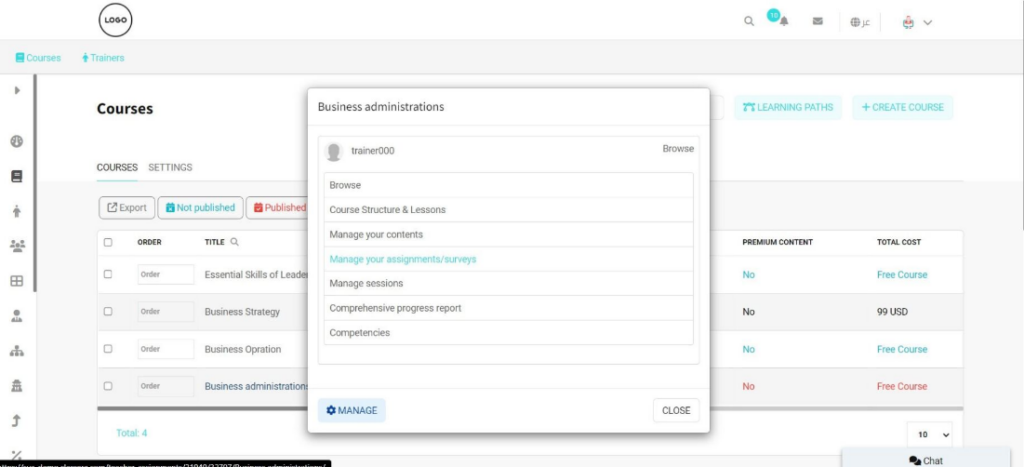
- Click the Courses tab from the sidebar.
- Click the course to which you want to add assignments/surveys from the Courses table.
- Click the Manage Your Assignments/Surveys button.
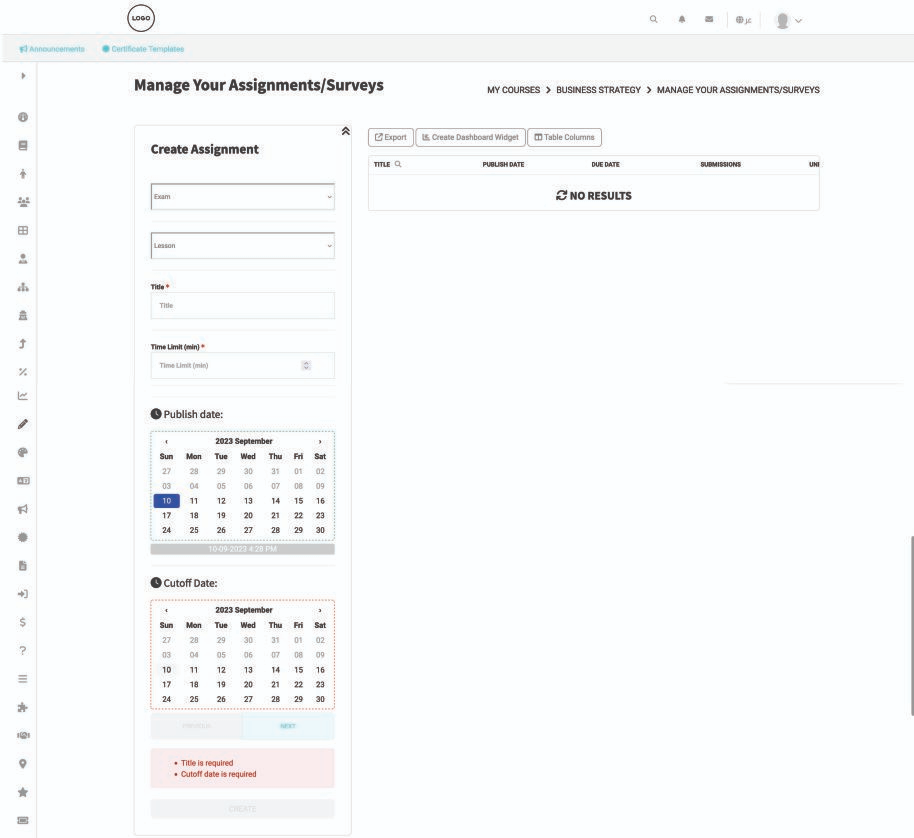
- Select the type you want to add (Exam – Homework – Survey).
- Type the title and specify by lesson/topic name.
- Type the time limit of your assignment/exam/survey.
- Set the publish date of the assignment/exam/survey.
- Set the cutoff date of the assignment/exam/survey.
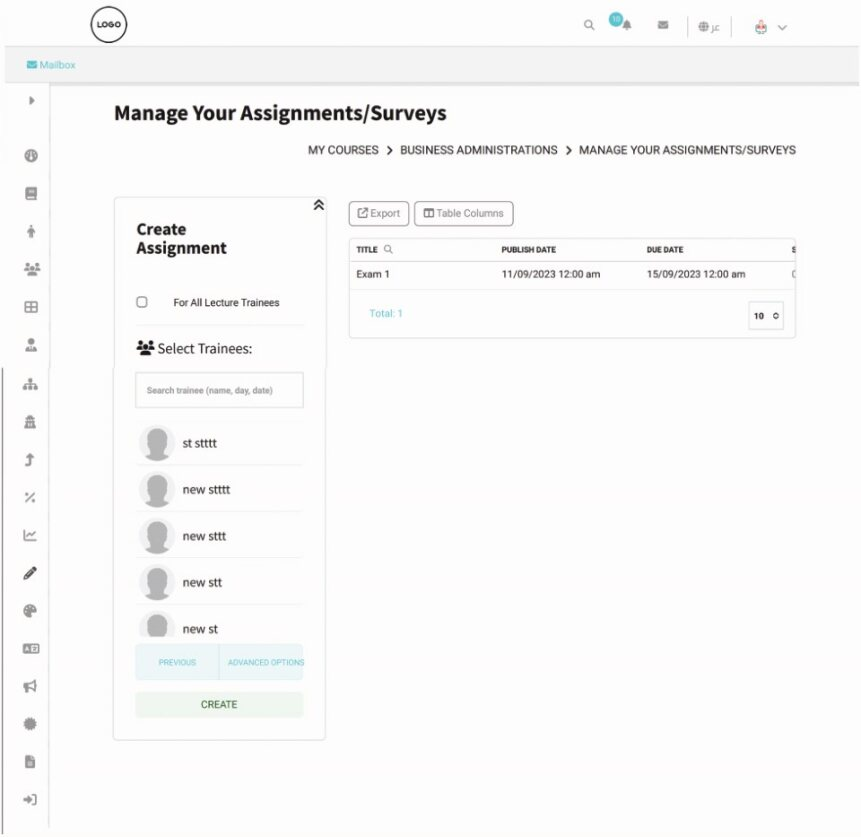
- Click Next to select the trainees you want this assignment/exam/survey to be available to. (Use the search box or the For All Lecture Trainees checkbox.)
- Click Create to add your assignment/exam/survey or click the Advanced Options button to add more options to your assignment/exam/survey.
Advanced Options: #
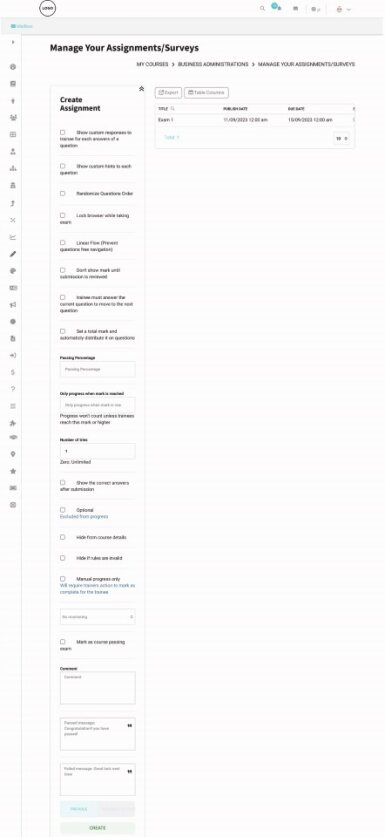
- Show Custom responses to trainees for each answer of a question: This option allows you to type 2 responses for each question (one for the correct answer and the other for the wrong answer).
- Show Custom hints to each question: It allows adding helping tips to each question.
- Check the Randomize question order box to have each trainee get the questions ordered differently.
- Lock browser while taking exam: It prevents trainees from opening other tabs or applications while answering. It’s limited to Windows 10 only.
- Linear Flow: It prevents questions-free navigation.
- Don’t show mark until submission is reviewed: to hide the trainees’ score after submission
- Trainee must answer the current question to move to the next question
- Set a total mark and automatically distribute it on questions: You will not insert a mark to each question later.
- Set a Passing Percentage: The system will consider any trainee above this percentage to have passed this course.
- Only progress when mark is reached: The progress of the trainee won’t count unless they get this mark or higher
- Type the allowed number of attempts to let students resubmit multiple times. You need to enter the maximum number allowed. (Zero means unlimited)
- Show the correct answers after submission (If checked, it would allow the trainer to comment on exam submissions and provide feedback for each trainee.
- Optional (It means that not/taking this exam will not affect the trainee’s progress).
- Hide from course details
- Hide if rules are invalid
- Manual progress only (If checked, it would require the trainers to mark each question manually for the trainees).
- Monitoring Settings:
- Face monitoring minimum logs (Trainers must add their faces to the system and have their webcams enabled.)
- Face monitoring full logsScreen monitoring
- Face and screen monitoring: Examiners can access the examinees’ screens and the exam activity while taking it. (Logs will be taken every few seconds with camera pictures and all)
- Type comments if needed (Optional).
- Click Create to save your settings and take you to the next step: Adding Questions.