
Skip to content
| User Manuals
| User Manuals

en_US English
en_US English ar Arabic fr_FR French

| User Manuals
| User Manuals

Administrator

  • Notification
  • New Landing Page
  • Auto-Enrollment
  • AI X-Sera
  • Edit Profile
  • Logging in
  • Homepage
  • Personal Bar
  • Users Management
  • Corporates
  • Trainers
  • Trainees
  • Styles and Academy Settings
  • Managing Categories
  • Courses Settings
  • Courses
  • Managing Content
  • Managing Sessions
  • Managing Assignments/Surveys
  • Creating/Adding Exam Questions
  • Comprehensive Progress Report
  • Competencies
  • Questions Bank
  • Certificate Templates
  • Learning Path
  • Specializations
  • Coupons
  • Packages
  • Announcements
  • Placement Exam
  • Course Statistics
  • Workflow
  • Setting up Workflows: Utilities
  • Enrollment Report
  • Technical Support

Trainees

  • Logging in
  • Home Page
  • Personal Profile
  • Edit Profile
  • Update Personal Information
  • My Learning
  • Announcements
  • Mailbox
  • Courses Settings
  • Course Content
  • Virtual Classrooms
  • Joining The classroom
  • Classroom Conversation
  • Exams and Assignments
  • Certificates

Trainer

  • LOGGING IN
  • HOME PAGE
  • PERSONAL PROFILE
  • EDIT PROFILE
  • UPDATE PERSONAL INFORMATION
  • MAILBOX
  • Create Course
  • COURSE CONTENT
  • ONLINE SESSION
  • ADDING ONLINE SESSION USING ZOOM MEETING
  • ADDING ONLINE SESSION USING MS TEAMS
  • STARTING THE SESSION
  • JOINING THE SESSION
  • ZOOM CLASSROOM MAIN SCREEN
  • EXAMS
  • Create ASSIGNMENT
  • ASSIGNMENT Settings
  • Advanced OPTIONS
  • Advanced SETTING
  • MANAGING EXAM QUESTIONS
  • CREATING QUESTIONS
  • ADD QUESTIONS FROM QBANKS
  • QUESTION BANK
  • COMPREHENSIVE PROGRESS REPORT
  • COMPETENCIES
  • FINANCIAL REPORT
  • Certificates

Corporate

  • Logging in
  • Trainees
  • Enrollment Report
View Categories
  • Home
  • Docs
  • Administrator
  • Certificate Templates

Certificate Templates

1 min read

Virtual certificates provide a distinct alternative to the meaning of certificates and paper letters. The trainer can issue electronic certificates and letters to all users. Among its various uses is issuing certificates of appreciation and distinguished letters of introduction to users. 

To browse the certificate templates page options, click the Certificate Templates tab from the sidebar where you can:

  • Create new templates  
  • Export exciting ones  
  • Change the table view  
  • View, edit, copy, and delete the template. 
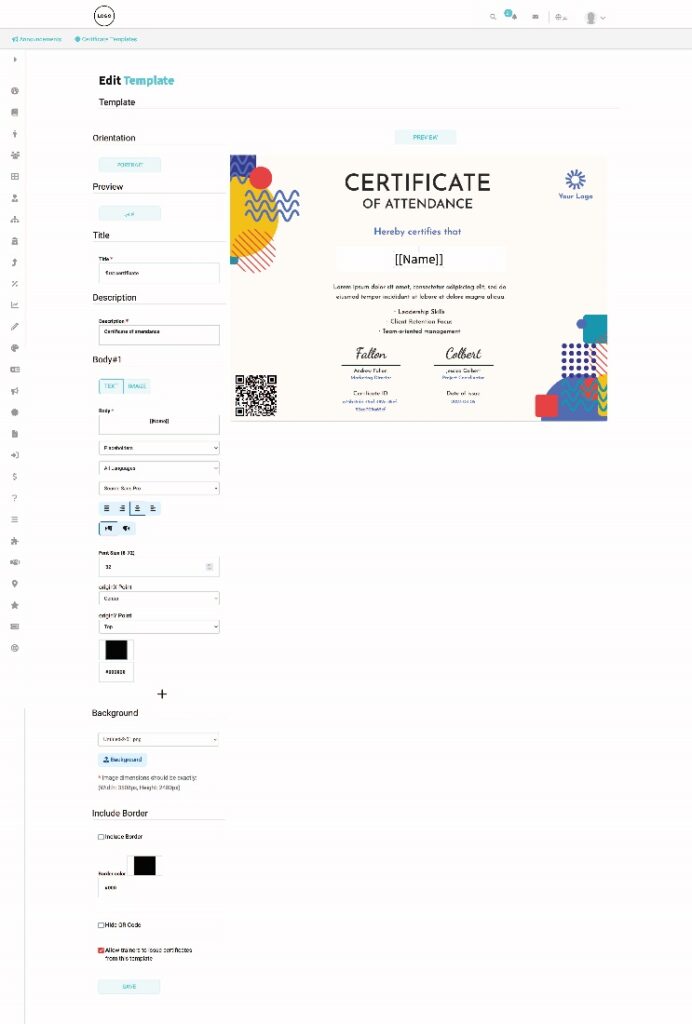
To create a certificate template: #
  1. Click the Certificate Templates tab from the sidebar.
  2. Click the Create Template tab.
  3. Type the template title. 
  4. Type the template description (It shows in the templates table). 
  5. In the Body box, add text, images, or placeholders. A placeholder allows you to add custom data from the database (such as username, user ID, etc.). 
  6. Select the language of the placeholder to match the certificate language. 
  7. The system provides texting editing options like color, font size, etc.
  8. Click the “+” icon to add other bodies. (Optional)
  9. Select the background color, or you can upload your own design for the certificate.
  10. Check the Include Border checkbox if you want the certificate template to have a border and select its color. 
  11. Check/uncheck the Hide the QR code to decide whether to hide or show the QR code. (The QR code is a unique ID for each certificate the system provides.) 
  12. You can allow trainers to issue certificates from this template by checking the corresponding checkbox, or you can make this template private. (The faculty and the certificate owner are the only ones who can access private templates.)
  13. Click Create to create the certificate template.  
What are your Feelings

Share This Article :

  • Facebook
  • X
  • LinkedIn
  • Pinterest
Still stuck? How can we help?

How can we help?

Questions BankLearning Path
Table of Contents
  • To create a certificate template: