
Skip to content
| User Manuals
| User Manuals

en_US English
en_US English ar Arabic fr_FR French

| User Manuals
| User Manuals

Administrator

  • Notification
  • New Landing Page
  • Auto-Enrollment
  • AI X-Sera
  • Edit Profile
  • Logging in
  • Homepage
  • Personal Bar
  • Users Management
  • Corporates
  • Trainers
  • Trainees
  • Styles and Academy Settings
  • Managing Categories
  • Courses Settings
  • Courses
  • Managing Content
  • Managing Sessions
  • Managing Assignments/Surveys
  • Creating/Adding Exam Questions
  • Comprehensive Progress Report
  • Competencies
  • Questions Bank
  • Certificate Templates
  • Learning Path
  • Specializations
  • Coupons
  • Packages
  • Announcements
  • Placement Exam
  • Course Statistics
  • Workflow
  • Setting up Workflows: Utilities
  • Enrollment Report
  • Technical Support

Trainees

  • Logging in
  • Home Page
  • Personal Profile
  • Edit Profile
  • Update Personal Information
  • My Learning
  • Announcements
  • Mailbox
  • Courses Settings
  • Course Content
  • Virtual Classrooms
  • Joining The classroom
  • Classroom Conversation
  • Exams and Assignments
  • Certificates

Trainer

  • LOGGING IN
  • HOME PAGE
  • PERSONAL PROFILE
  • EDIT PROFILE
  • UPDATE PERSONAL INFORMATION
  • MAILBOX
  • Create Course
  • COURSE CONTENT
  • ONLINE SESSION
  • ADDING ONLINE SESSION USING ZOOM MEETING
  • ADDING ONLINE SESSION USING MS TEAMS
  • STARTING THE SESSION
  • JOINING THE SESSION
  • ZOOM CLASSROOM MAIN SCREEN
  • EXAMS
  • Create ASSIGNMENT
  • ASSIGNMENT Settings
  • Advanced OPTIONS
  • Advanced SETTING
  • MANAGING EXAM QUESTIONS
  • CREATING QUESTIONS
  • ADD QUESTIONS FROM QBANKS
  • QUESTION BANK
  • COMPREHENSIVE PROGRESS REPORT
  • COMPETENCIES
  • FINANCIAL REPORT
  • Certificates

Corporate

  • Logging in
  • Trainees
  • Enrollment Report
View Categories
  • Home
  • Docs
  • Administrator
  • Learning Path

Learning Path

1 min read

To make the process of learning easier, the Classera Academy learning paths contain various courses for the trainees to take in a sequence. All ready and set for our trainees!

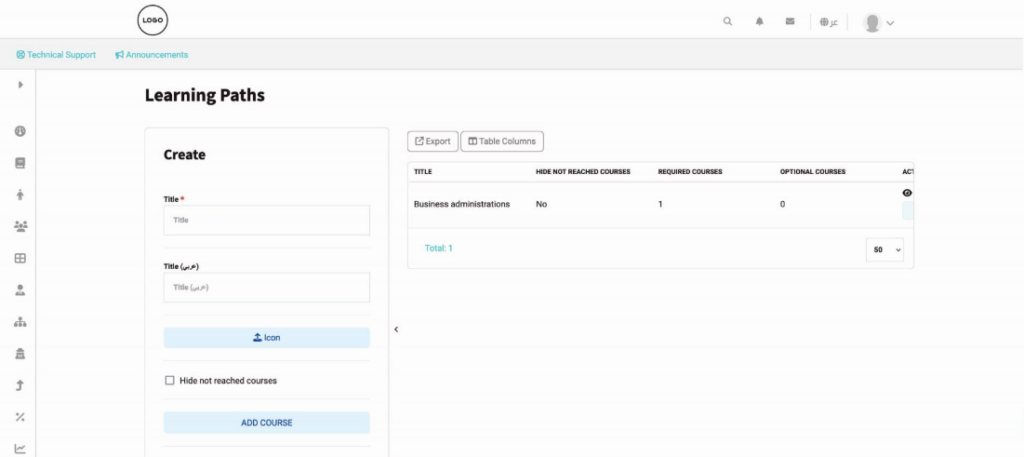
To create a learning path: #
  1. Find Your Content Head over to the sidebar and click the Content tab to get started.
  2. Jump into Learning Paths From there, just click the Learning Paths button.
  3. Give It a Name Enter a title for your path. You’ll need to provide this in both English and Arabic so all your users feel at home.
  4. Pick an Icon Upload a custom icon to give your path a distinct look and make it easy to recognize.
  5. Control the Flow (Optional) * Hide Future Steps: If you want to keep things a surprise (or prevent overwhelm), check Hide not reached courses. This keeps upcoming lessons out of sight until the trainee is ready.
  6. Focus on One Task: Check One course at a time if you’d prefer trainees to finish their current course group before jumping into the next one.
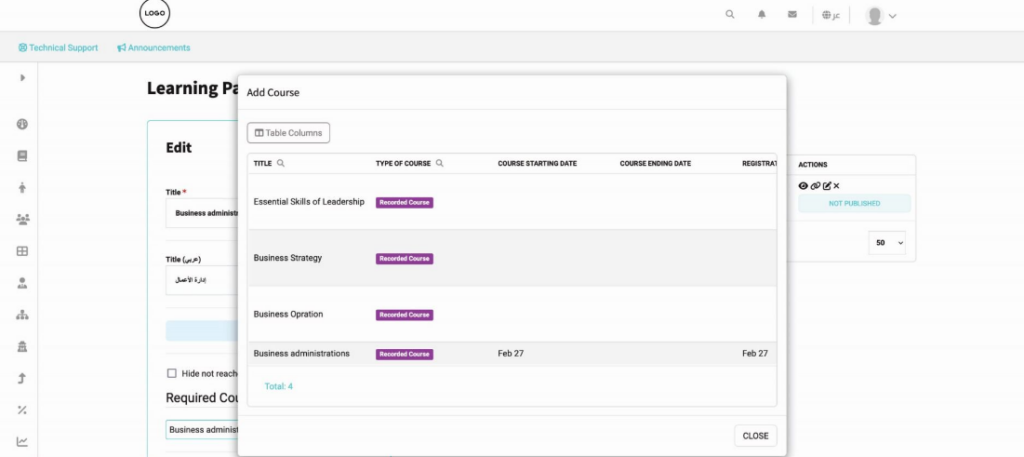
  7. Pick Your Courses Ready to build? Click Add Course. A window will pop up showing every course you’ve created in your academy so far.
  8. Build the Journey Under the Actions column for each course, you have two choices:
  9. Add to Path: Use this for the “must-haves” that are required to finish the journey.
  10. Add as Optional: Use this for bonus content that trainees can skip if they’re in a hurry

Make it Official Once you’re happy with the lineup, just hit Create and your new learning path is ready for action!
What are your Feelings

Share This Article :

  • Facebook
  • X
  • LinkedIn
  • Pinterest
Still stuck? How can we help?

How can we help?

Certificate TemplatesSpecializations
Table of Contents
  • To create a learning path: