
Skip to content
| User Manuals
| User Manuals

en_US English
en_US English ar Arabic fr_FR French

| User Manuals
| User Manuals

Administrator

  • Notification
  • New Landing Page
  • Auto-Enrollment
  • AI X-Sera
  • Edit Profile
  • Logging in
  • Homepage
  • Personal Bar
  • Users Management
  • Corporates
  • Trainers
  • Trainees
  • Styles and Academy Settings
  • Managing Categories
  • Courses Settings
  • Courses
  • Managing Content
  • Managing Sessions
  • Managing Assignments/Surveys
  • Creating/Adding Exam Questions
  • Comprehensive Progress Report
  • Competencies
  • Questions Bank
  • Certificate Templates
  • Learning Path
  • Specializations
  • Coupons
  • Packages
  • Announcements
  • Placement Exam
  • Course Statistics
  • Workflow
  • Setting up Workflows: Utilities
  • Enrollment Report
  • Technical Support

Trainees

  • Logging in
  • Home Page
  • Personal Profile
  • Edit Profile
  • Update Personal Information
  • My Learning
  • Announcements
  • Mailbox
  • Courses Settings
  • Course Content
  • Virtual Classrooms
  • Joining The classroom
  • Classroom Conversation
  • Exams and Assignments
  • Certificates

Trainer

  • LOGGING IN
  • HOME PAGE
  • PERSONAL PROFILE
  • EDIT PROFILE
  • UPDATE PERSONAL INFORMATION
  • MAILBOX
  • Create Course
  • COURSE CONTENT
  • ONLINE SESSION
  • ADDING ONLINE SESSION USING ZOOM MEETING
  • ADDING ONLINE SESSION USING MS TEAMS
  • STARTING THE SESSION
  • JOINING THE SESSION
  • ZOOM CLASSROOM MAIN SCREEN
  • EXAMS
  • Create ASSIGNMENT
  • ASSIGNMENT Settings
  • Advanced OPTIONS
  • Advanced SETTING
  • MANAGING EXAM QUESTIONS
  • CREATING QUESTIONS
  • ADD QUESTIONS FROM QBANKS
  • QUESTION BANK
  • COMPREHENSIVE PROGRESS REPORT
  • COMPETENCIES
  • FINANCIAL REPORT
  • Certificates

Corporate

  • Logging in
  • Trainees
  • Enrollment Report
View Categories
  • Home
  • Docs
  • Administrator
  • Notification

Notification

2 min read

We’ve made it easy to keep up with everything happening in your academy. Think of this page as your personal mission control for staying connected with your trainees and your content.

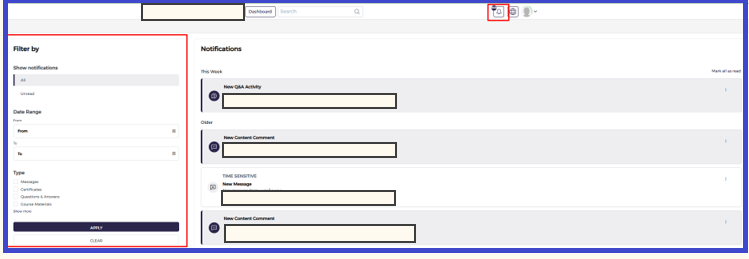
  • Your Activity Timeline: On the right side of the screen, you’ll see a live feed of your latest updates. Whether someone has asked a brilliant question in the Q&A, left a fresh comment on a lesson, or sent you a direct message, it will all show up here in real-time.
  • Find Exactly What You Need: Use the Filter by panel on the left to cut through the noise. You can quickly sort your alerts by:
    • Status: See what’s new versus what you’ve already handled.
    • Date Range: Look back at last week’s activity or focus on today.
    • Type: Jump straight to just your messages or just your content comments.
Keeping Up with Your Notifications #

Stay organized and never miss a beat! Here’s how to find and manage your latest academy updates:

  1. Check the Bell Ready to see what’s new? Just click the bell icon at the top of your dashboard to jump straight into your notifications.
  2. Fine-Tune Your View On the left side, you’ll find a handy Filter panel. This is your best friend for cutting through the noise. You can sort by:
    • Unread or All: Choose “Unread” to see what needs your attention right now, or “All” to look back at everything.
    • Date Range: Want to see what happened over the weekend? Pick a specific timeframe to narrow things down.
    • Notification Type: Looking for something specific? Check the boxes for Messages, Certificates, Comments, or Course Materials to see only those updates.
  3. Apply Your Settings Once you’ve picked your filters, just hit Apply to refresh your list. If you want to start over and see everything again, simply click Clear.
  4. Browse and Act Your personalized list will appear on the right, neatly organized by time (like “This Week” or “Older”). Just click on any notification to dive into the details or respond!

Tip: > Frequent filtering is the secret to staying organized! It’s the fastest way to spot unread messages and keep your academy running smoothly.

What are your Feelings

Share This Article :

  • Facebook
  • X
  • LinkedIn
  • Pinterest
Still stuck? How can we help?

How can we help?

Technical SupportNew Landing Page
Table of Contents
  • Keeping Up with Your Notifications