
Skip to content
| User Manuals
| User Manuals

en_US English
en_US English ar Arabic fr_FR French

| User Manuals
| User Manuals

Administrator

  • Notification
  • New Landing Page
  • Auto-Enrollment
  • AI X-Sera
  • Edit Profile
  • Logging in
  • Homepage
  • Personal Bar
  • Users Management
  • Corporates
  • Trainers
  • Trainees
  • Styles and Academy Settings
  • Managing Categories
  • Courses Settings
  • Courses
  • Managing Content
  • Managing Sessions
  • Managing Assignments/Surveys
  • Creating/Adding Exam Questions
  • Comprehensive Progress Report
  • Competencies
  • Questions Bank
  • Certificate Templates
  • Learning Path
  • Specializations
  • Coupons
  • Packages
  • Announcements
  • Placement Exam
  • Course Statistics
  • Workflow
  • Setting up Workflows: Utilities
  • Enrollment Report
  • Technical Support

Trainees

  • Logging in
  • Home Page
  • Personal Profile
  • Edit Profile
  • Update Personal Information
  • My Learning
  • Announcements
  • Mailbox
  • Courses Settings
  • Course Content
  • Virtual Classrooms
  • Joining The classroom
  • Classroom Conversation
  • Exams and Assignments
  • Certificates

Trainer

  • LOGGING IN
  • HOME PAGE
  • PERSONAL PROFILE
  • EDIT PROFILE
  • UPDATE PERSONAL INFORMATION
  • MAILBOX
  • Create Course
  • COURSE CONTENT
  • ONLINE SESSION
  • ADDING ONLINE SESSION USING ZOOM MEETING
  • ADDING ONLINE SESSION USING MS TEAMS
  • STARTING THE SESSION
  • JOINING THE SESSION
  • ZOOM CLASSROOM MAIN SCREEN
  • EXAMS
  • Create ASSIGNMENT
  • ASSIGNMENT Settings
  • Advanced OPTIONS
  • Advanced SETTING
  • MANAGING EXAM QUESTIONS
  • CREATING QUESTIONS
  • ADD QUESTIONS FROM QBANKS
  • QUESTION BANK
  • COMPREHENSIVE PROGRESS REPORT
  • COMPETENCIES
  • FINANCIAL REPORT
  • Certificates

Corporate

  • Logging in
  • Trainees
  • Enrollment Report
View Categories
  • Home
  • Docs
  • SMS

SMS

1 min read

SMS is used to send a text message to users on their mobile phones if the user has this service available in his/her account.

Note: You must make sure that the mobile numbers of the users to whom the text message will be sent are in their account information.

To Send an SMS: #
  1. Click “SMS” from the main menu. 
  2. You can view a report of messages sent from the “SMS Report” tab.
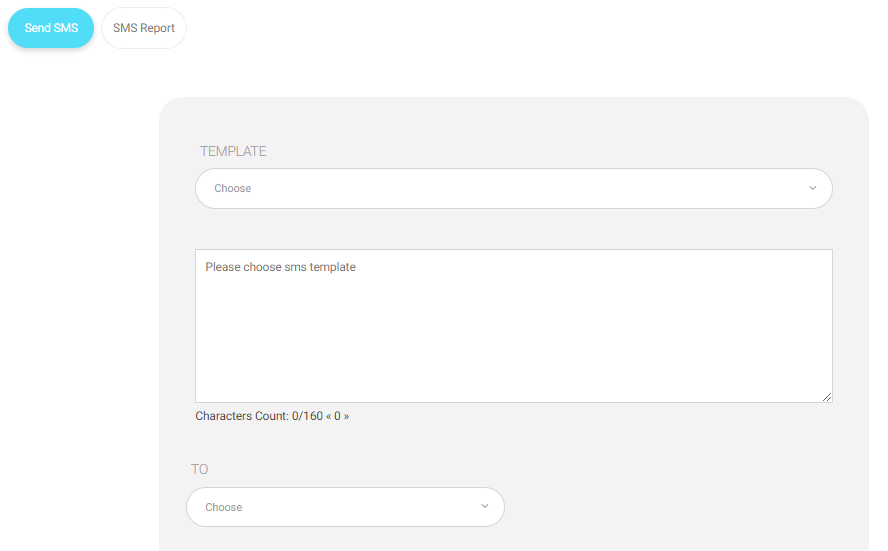
  3. You can send a text message from the “Send SMS” tab.
  4. You can choose a message template to use and these templates are created by the system administrator.
  5. Write the text message content directly .
  6. Select the type of account to which this message will be sent.
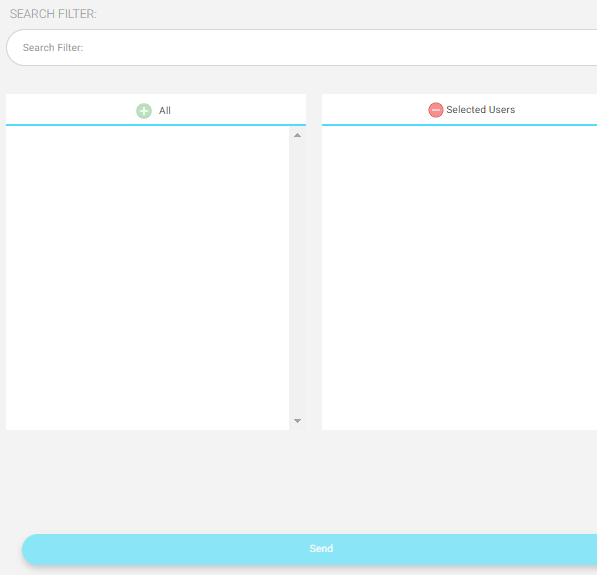
  • User search can be done by name.
    • All users appear in this list and by clicking the All button, all will be added to the selected user’s list or users can be selected Individually.
    • All users who have been selected to receive the text message are shown in the Selected Users.

Finally, click “Send” to start sending text messages.


Note: You will not be able to send any message if the school does not have enough credit
or the user’s phone number is incorrect.
What are your Feelings

Share This Article :

  • Facebook
  • X
  • LinkedIn
  • Pinterest
Still stuck? How can we help?

How can we help?

Table of Contents
  • To Send an SMS: