
Aller au contenu
| User Manuals
| User Manuals

fr_FR French
fr_FR French en_US English ar Arabic

| User Manuals
| User Manuals

Administrator

  • Notification
  • New Landing Page
  • Auto-Enrollment
  • AI X-Sera
  • Modifier le profil
  • Se Connecter
  • Accueil
  • Personal Bar
  • Users Management
  • Corporates
  • Trainers
  • Trainees
  • Styles and Academy Settings
  • Managing Categories
  • Courses Settings
  • Cours £
  • Gérer le Contenu
  • Managing Sessions
  • Managing Assignments/Surveys
  • Creating/Adding Exam Questions
  • Comprehensive Progress Report
  • Competencies
  • Questions Bank
  • Certificate Templates
  • Learning Path
  • Specializations
  • Coupons
  • Packages
  • Annonces
  • Placement Exam
  • Course Statistics
  • Workflow
  • Setting up Workflows: Utilities
  • Enrollment Report
  • Technical Support

Trainees

  • Se Connecter
  • Accueil
  • Profil
  • Modifier le profil
  • Update Personal Information
  • My Learning
  • Annonces
  • La boîte aux lettres
  • Courses Settings
  • Course Content
  • Classes Intelligentes
  • Joining The classroom
  • Conversation en Classe £
  • Exams and Assignments
  • Certificates

Trainer

  • LOGGING IN
  • HOME PAGE
  • PERSONAL PROFILE
  • EDIT PROFILE
  • UPDATE PERSONAL INFORMATION
  • MAILBOX
  • Create Course
  • COURSE CONTENT
  • ONLINE SESSION
  • ADDING ONLINE SESSION USING ZOOM MEETING
  • ADDING ONLINE SESSION USING MS TEAMS
  • STARTING THE SESSION
  • JOINING THE SESSION
  • ZOOM CLASSROOM MAIN SCREEN
  • EXAMS
  • انشاء الواجب
  • ASSIGNMENT Settings
  • خيارات متقدمه
  • خيارات متقدمه
  • MANAGING EXAM QUESTIONS
  • CREATING QUESTIONS
  • ADD QUESTIONS FROM QBANKS
  • QUESTION BANK
  • COMPREHENSIVE PROGRESS REPORT
  • COMPETENCIES
  • FINANCIAL REPORT
  • Certificates

Corporate

  • Se Connecter
  • Trainees
  • Enrollment Report
View Categories
  • Home
  • Docs
  • Trainees
  • My Learning

My Learning

< 1 min read

This screen displays the “My Learning” section, where users can view their timetable and track scheduled learning events or classes. The timetable allows filtering by date and event type. If there are no scheduled events for the selected period, a “No Events Found” message is shown.
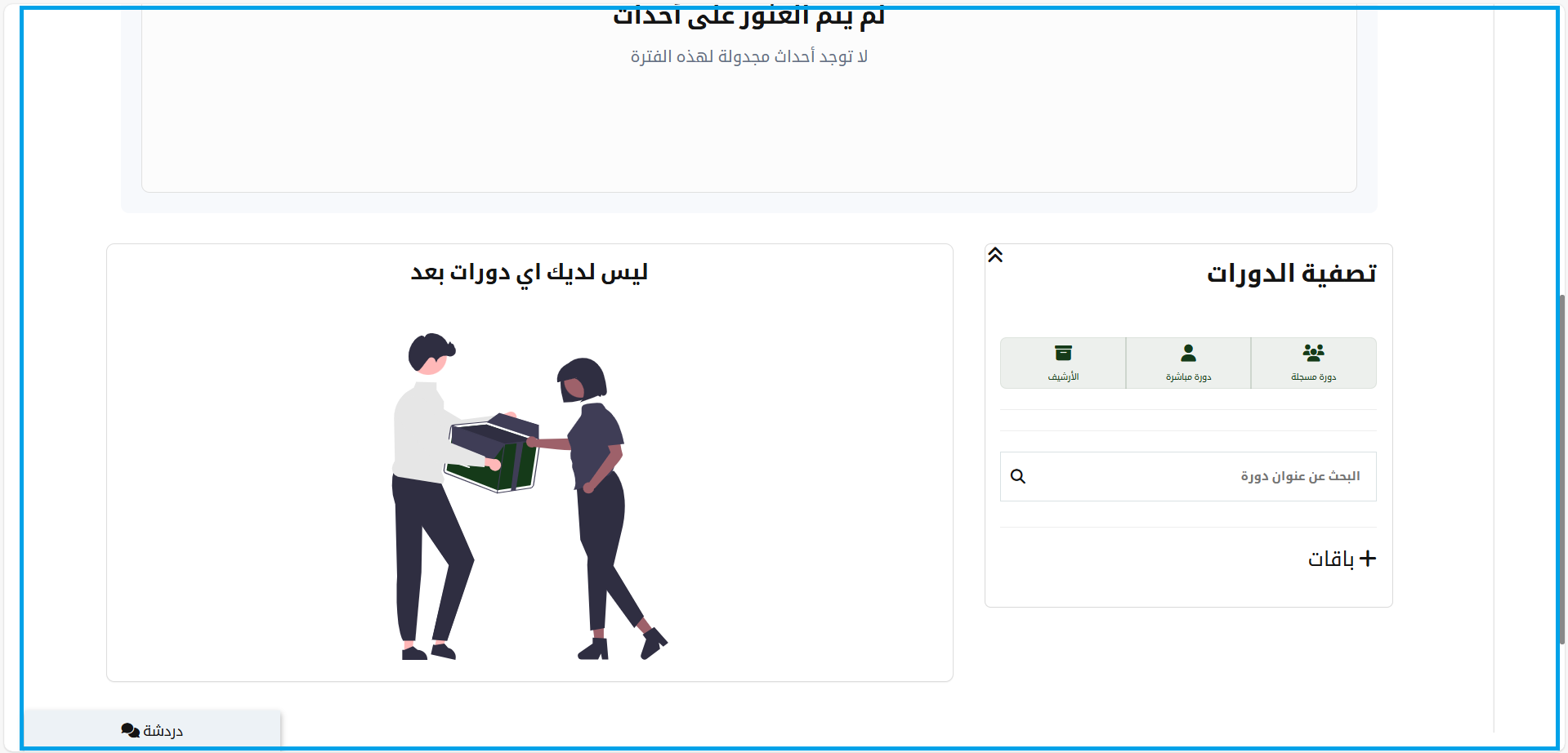
1- The main section of the home page is an information management tool that monitors and analyses. It gives you a visual display of all your academy and contains a chat tab to contact any academy users.
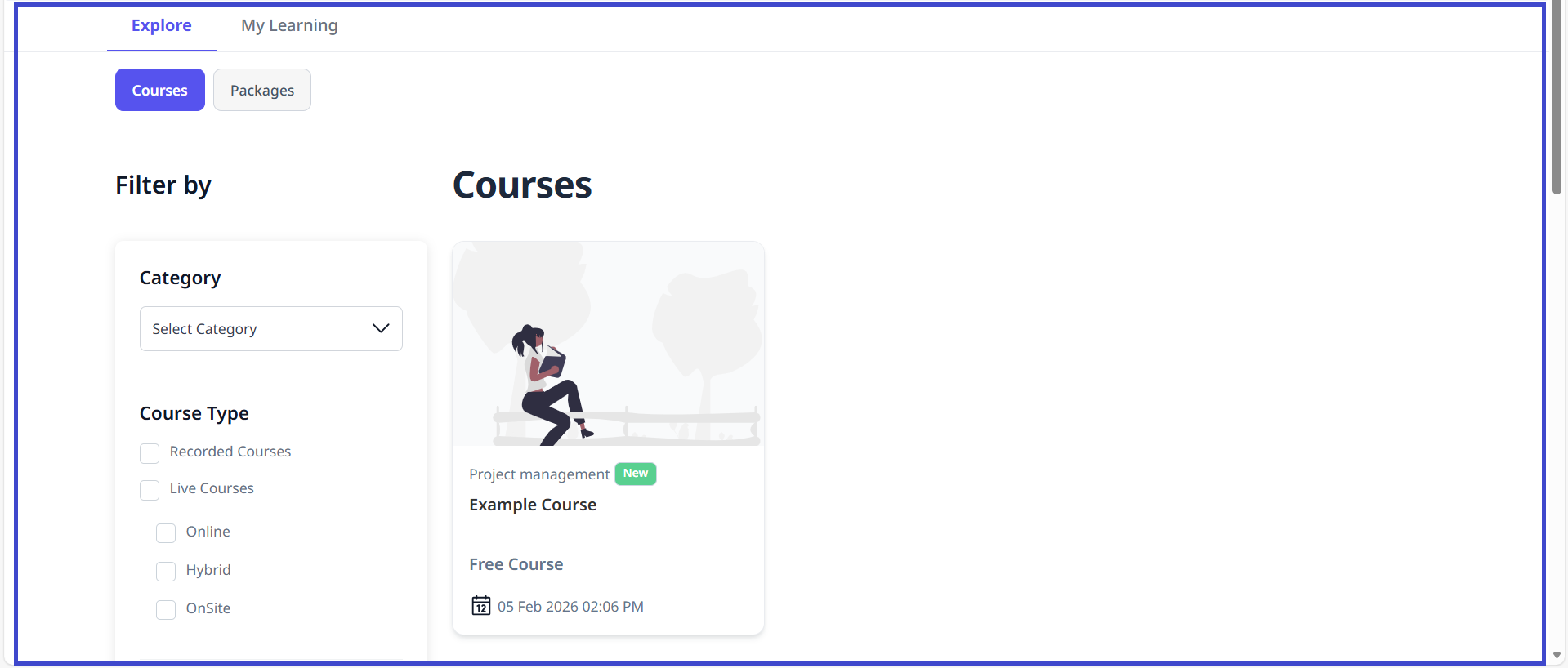
2- The Courses table shows on the dashboard, PACKAGES, RECORD COURSE, LIVE COURSE, ARCHIVES, and WORKFLOW, and you can click + to enroll in a new course.

What are your Feelings

Share This Article :

  • Facebook
  • X
  • LinkedIn
  • Pinterest
Still stuck? How can we help?

How can we help?

Update Personal InformationAnnonces